Getting customers into a WhatsApp conversation should be effortless. This guide shows how to create a WhatsApp QR code and click-to-chat entry points in WapBlaster, and how to place them where customers will actually use them.
Step 1: Generate your WhatsApp QR code
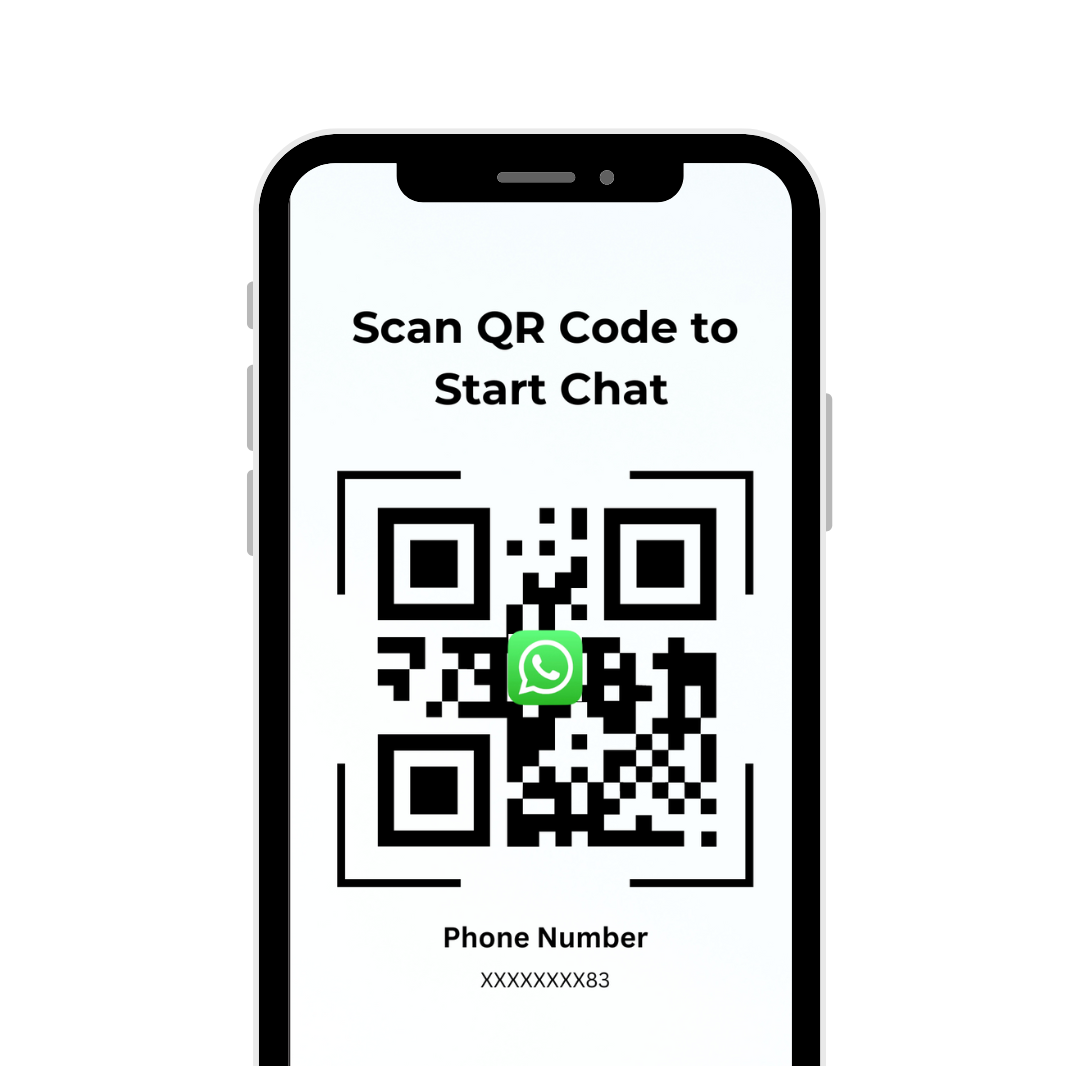
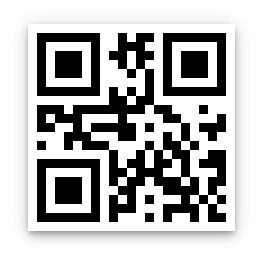
Create a QR code that opens a chat with your business number. Customers scan it to start a conversation instantly, with no need to save your number.
Step 2: Add a helpful pre-filled message
Set a pre-filled first message so the conversation starts with useful context, such as the product or offer the customer is interested in.
Step 3: Place the QR code where it counts
Add the QR code to packaging, receipts, posters or your storefront. A clear call to action increases the number of useful scans.
Step 4: Create click-to-chat links
Use click-to-chat links on your website, ads and social profiles so a single tap opens WhatsApp with your business.
Step 5: Track which entry points work
Use separate entry points per placement so you can see which posters, pages or campaigns actually drive conversations.
Helpful next reads
WhatsApp QR code marketing guide, Click-to-WhatsApp ads guide, WhatsApp opt-in tactics.
Frequently asked questions
How do I create a WhatsApp QR code in WapBlaster?
Open the QR code tool, generate a code linked to your business number, optionally add a pre-filled message, then download and place it where customers will scan it.
Do customers need to save my number to scan a QR code?
No. Scanning the QR code opens a chat with your business directly, so customers can start a conversation without saving the number first.
How can I tell which QR code or link drove a chat?
Use a separate entry point per placement or campaign so you can compare which posters, pages or ads generate the most useful conversations.