
As chat volume grows, organisation becomes essential. Labels and assignments in WapBlaster help your team sort conversations, route them to the right person and find what matters. This guide shows how to use them.
Step 1: Open a conversation
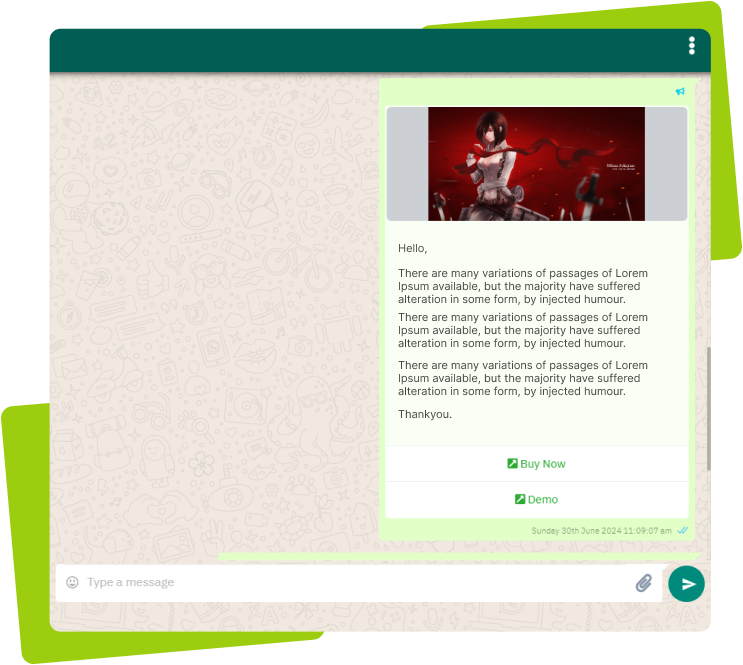
Open a chat from the team inbox. This is where you apply labels and assign the conversation to the right agent.
Step 2: Apply labels
Add labels such as new lead, pending, or resolved so conversations are easy to filter and prioritise.
Step 3: Assign to an agent or team
Assign the conversation to the agent or team best suited to handle it, so ownership is clear.
Step 4: Filter by label
Use labels to filter the inbox and focus on a specific type of conversation, such as open leads or unresolved issues.
Step 5: Review and clean up
Regularly review labels and assignments so the inbox stays a reliable reflection of what needs attention.
Helpful next reads
How to use the shared team inbox, Shared WhatsApp team inbox feature, WhatsApp team inbox guide.
Frequently asked questions
What are labels used for in WapBlaster chats?
Labels tag conversations, for example new lead, pending or resolved, so your team can filter, prioritise and find the chats that need attention.
Can I assign a WhatsApp chat to a specific agent?
Yes. You can assign a conversation to the agent or team best suited to handle it, which makes ownership clear and prevents missed replies.
How do labels help a busy support team?
They let you filter the inbox by conversation type, so agents can focus on open leads or unresolved issues instead of scrolling through everything.