

Sometimes a picture or document resolves a support issue faster than a paragraph of text. This guide shows how to send media and files in WapBlaster support conversations so your team can help customers quickly and clearly.
Step 1: Open the support conversation
From the team inbox, open the customer’s conversation so you have the full context before sending anything.
Step 2: Attach the right media
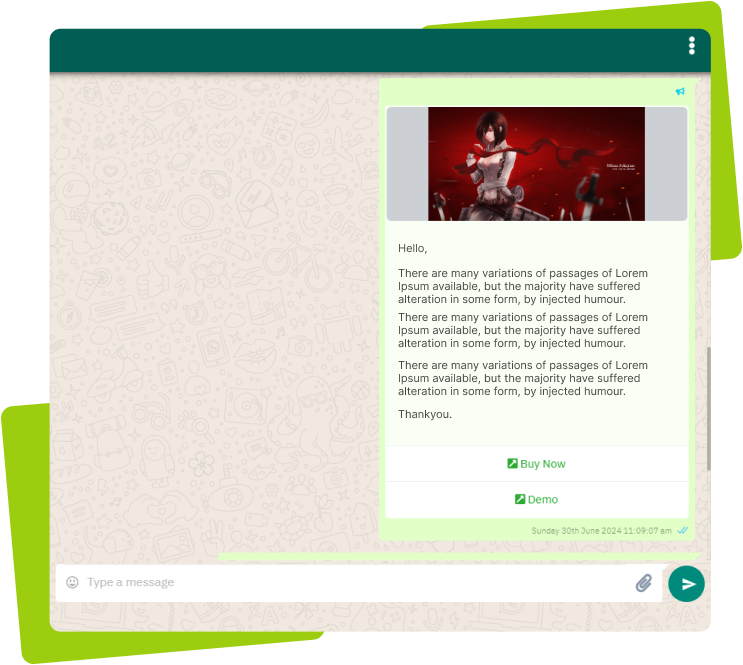
Send an image, screenshot or document, such as a how-to guide, invoice or product photo, that directly answers the customer’s question.
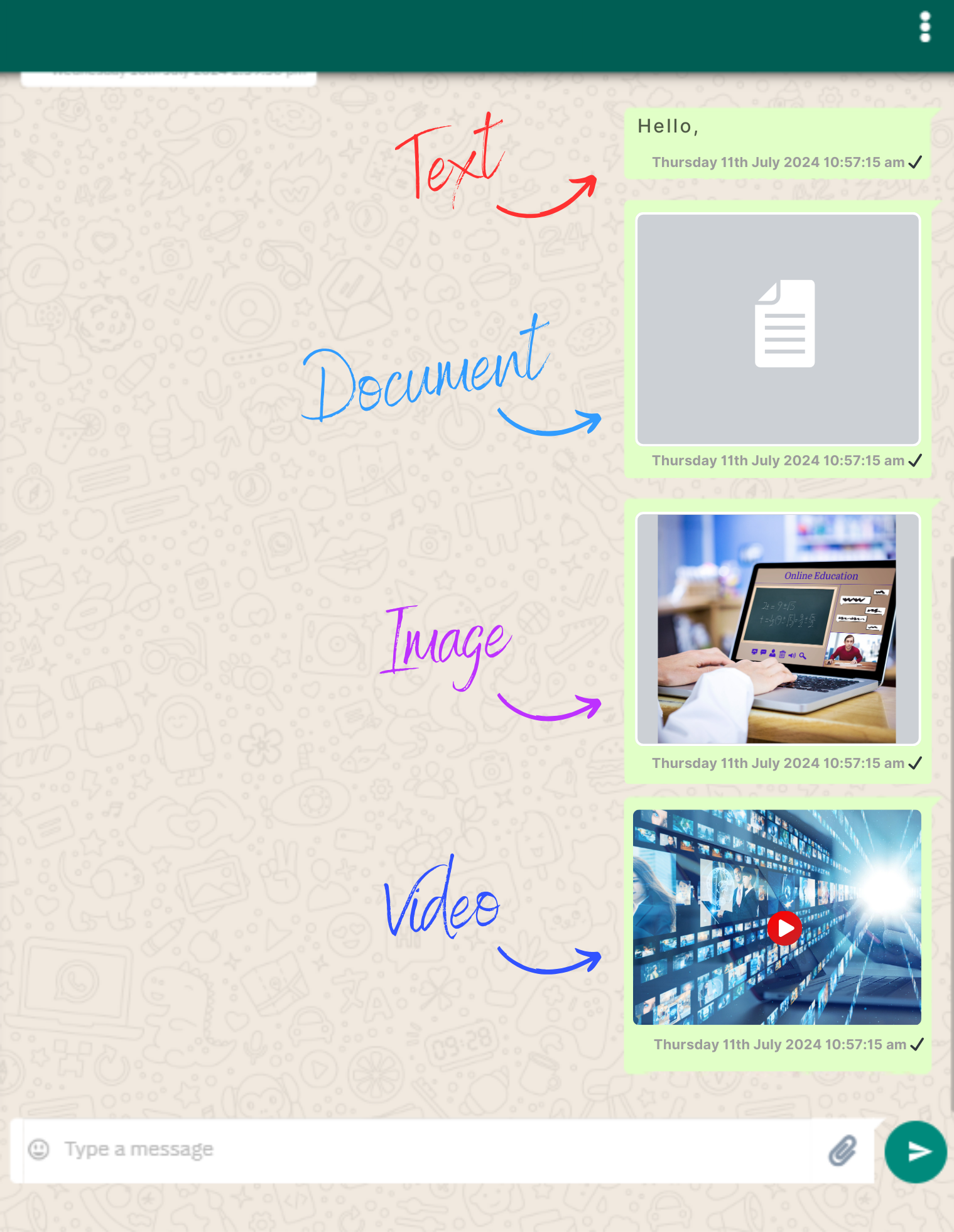
Step 3: Add a short explanation
Pair the file with a brief note so the customer understands what it is and what to do with it.
Step 4: Confirm the issue is resolved
Check that the media solved the problem, and offer a next step or escalation if the customer still needs help.
Step 5: Keep records with the chat
Because the media stays in the conversation, your team keeps a clear record for future reference.
Helpful next reads
How to send rich media messages, WhatsApp customer support guide, How to use the shared team inbox.
Frequently asked questions
Can I send documents in WhatsApp support chats?
Yes. WapBlaster lets you send images, screenshots and documents such as guides or invoices directly in the conversation to resolve issues faster.
Why send media instead of text in support?
A screenshot, photo or document can explain a solution more clearly and quickly than text, which speeds up resolution and reduces back-and-forth.
Does shared media stay in the conversation?
Yes. Media remains in the chat, so your team keeps a clear record of what was sent for future reference and context.