

Rich media makes WhatsApp messages more engaging and useful. This guide shows how to send images, videos, documents and interactive buttons in WapBlaster so your messages inform and convert.
Step 1: Choose the media type
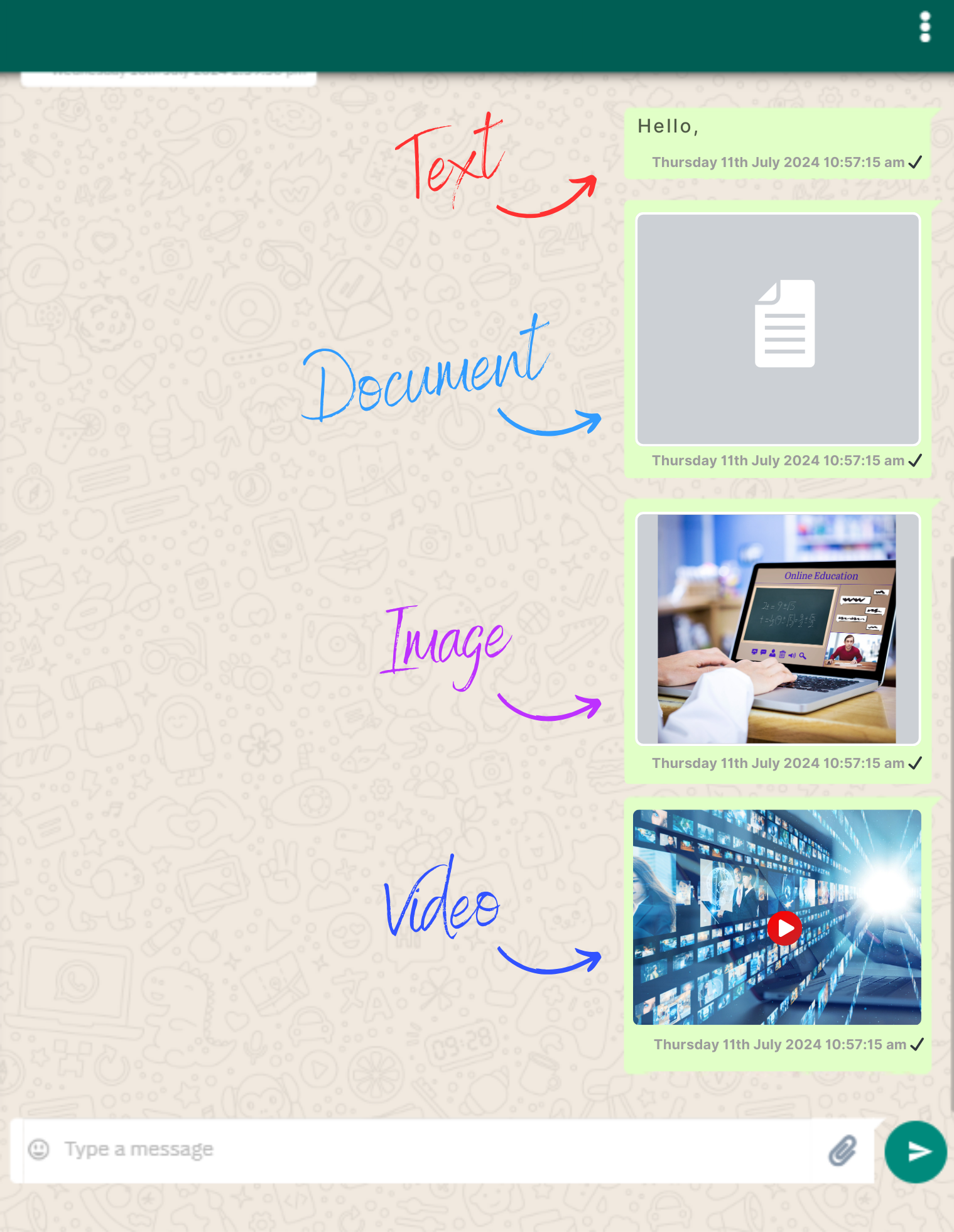
In a campaign or chat, select the media you want to send, an image, video, or document such as a PDF catalogue or invoice.
Step 2: Add a clear caption
Pair the media with a short caption that explains what it is and what the customer should do next.
Step 3: Add buttons or a call to action
Where supported, add quick-reply buttons or a call to action so customers can respond in one tap.
Step 4: Preview before sending
Check how the media and caption appear, and confirm any links work, before sending to customers.
Step 5: Keep files light and relevant
Use appropriately sized files so they load quickly, and only send media that genuinely helps the customer.
Helpful next reads
How to create a broadcast campaign, WhatsApp copywriting guide, WhatsApp catalog and commerce guide.
Frequently asked questions
What media can I send on WhatsApp with WapBlaster?
You can send images, videos and documents such as PDFs, and where supported add captions and interactive buttons to make messages actionable.
Should I add a caption to media messages?
Yes. A short caption explains what the media is and what the customer should do next, which improves clarity and response.
How do I keep media messages fast to load?
Use appropriately sized files and only send media that genuinely helps the customer, so messages load quickly and stay relevant.