The fastest way to lift WhatsApp response rates is to stop asking people to type. Interactive messages — reply buttons, list menus and call-to-action buttons — turn open-ended questions into simple taps. They reduce errors, speed up conversations and make automation feel effortless. This guide explains each type and when to use it.
Why interactive beats free text
When you ask a customer to "reply 1 for sales, 2 for support", you invite typos, wrong formats and drop-off. Interactive elements remove that friction entirely.
- Higher completion: tapping is easier than typing, especially on mobile.
- Cleaner data: structured replies are easy for your chatbot to route accurately.
- Faster resolution: fewer clarifying round-trips.
Reply buttons (quick replies)
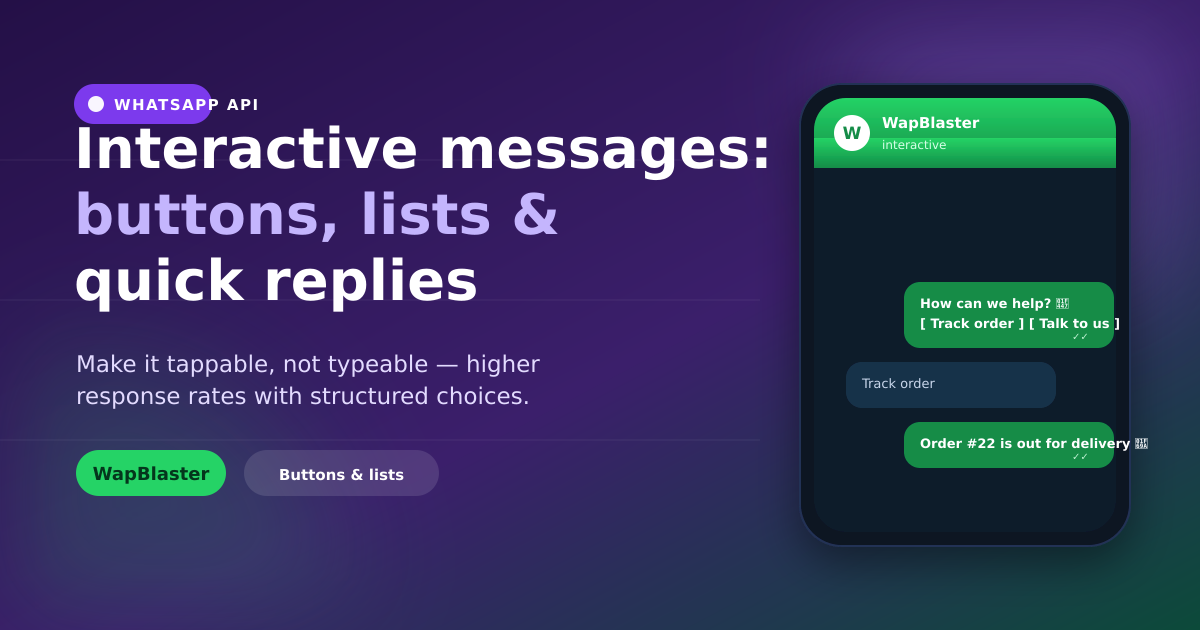
Reply buttons show up to three tappable options under a message. They are perfect for quick decisions and branching.
- Best for: yes/no confirmations, choosing a department, simple menus.
- Limit: up to three buttons per message.
- Example: "Track order" · "Talk to us" · "See offers".
List messages
List messages open a tidy menu of up to ten options grouped into sections. Use them when you have more choices than three buttons can hold.
- Best for: service menus, product categories, appointment slots, FAQs.
- Limit: up to ten rows, each with a title and optional description.
- Keeps the chat clean by hiding options behind a single tap.
Call-to-action (URL and call) buttons
CTA buttons let you add a link or phone number to a template without pasting a raw URL. They are ideal for driving to a checkout, tracking page or your website while keeping the message tidy and trustworthy.
- Visit website: send buyers straight to a product or tracking page.
- Call: let high-intent leads reach you in one tap.
Templates vs session messages
Interactive buttons can appear both in approved templates (for business-initiated messages) and in free-form session messages inside the 24-hour window. Knowing which applies matters — read our companion guide on session vs template messages to stay compliant and avoid rejected templates. For approval tips, see the template approval guide.
Design tips that lift response
- Keep button labels short and action-led ("Book now", not "Click here to book").
- Offer three clear choices, not ten vague ones.
- Use lists when options share a theme; use buttons for decisions.
- Always include an escape hatch to reach a human in your team inbox.
Frequently asked questions
How many buttons can a WhatsApp message have?
Reply button messages support up to three buttons. If you need more options, use a list message, which supports up to ten rows grouped into sections. Call-to-action buttons (URL or phone) are separate and used mainly in templates.
What is the difference between quick reply buttons and list messages?
Quick reply buttons show up to three tappable options directly under a message and suit simple decisions. List messages open a menu of up to ten options and suit longer choices like service menus or appointment slots.
Can I use interactive buttons in a template message?
Yes. Approved templates can include quick reply buttons and call-to-action buttons. Free-form interactive messages can also be sent inside the 24-hour customer service window without a template.
Do interactive messages cost more?
No. Pricing is based on the conversation category, not on whether the message contains buttons or a list. Interactive elements simply improve response rates within the same conversation cost.
Make every message tappable. Build interactive flows with the WhatsApp chatbot builder or get started free.