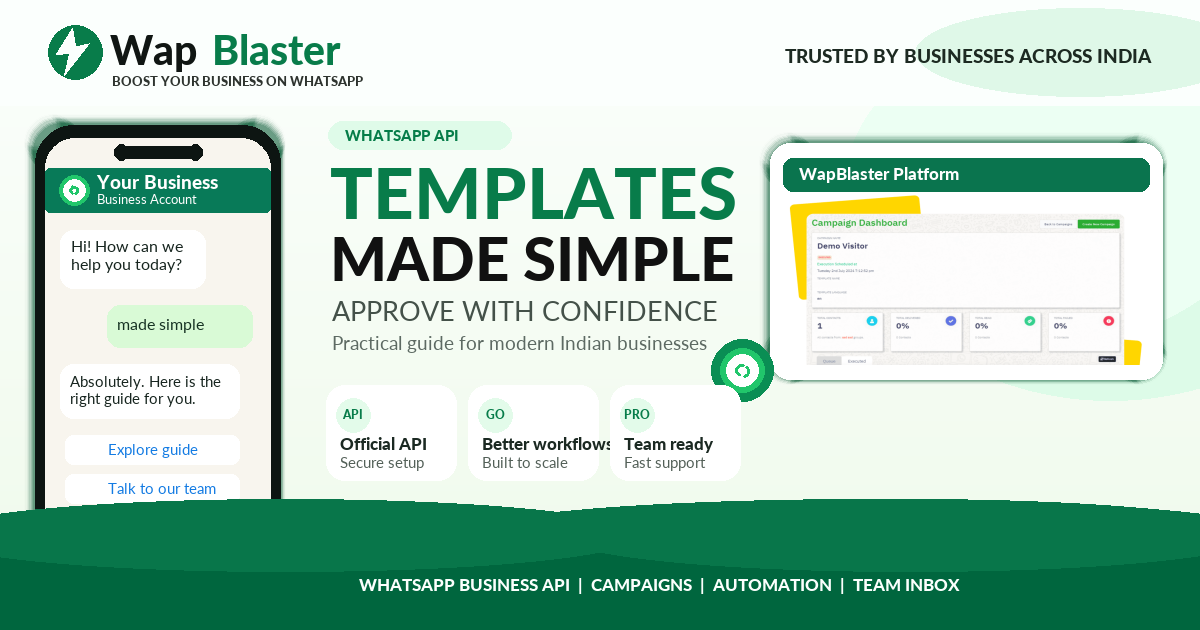
On the WhatsApp Business API, you cannot message a customer freely at any time. To start a conversation or message someone outside the 24-hour service window, you must use a pre-approved message template. Getting those templates approved quickly — and avoiding rejections — is one of the most important operational skills for any business using WhatsApp. This complete 2026 guide covers template categories, formatting rules, the approval process, real examples, and the exact reasons templates get rejected.
What is a WhatsApp message template?
A message template is a standardised message format that you submit to Meta for review before you can send it. Once approved, you can send that template to opted-in customers — including as the first message in a conversation. Templates can include variables (placeholders like a customer's name or order number), buttons, and media headers.
The three template categories in 2026
Meta classifies every template into one of three categories, and the category affects both pricing and what content is allowed:
- Marketing — promotions, offers, product announcements, newsletters, cart reminders, and re-engagement. The most flexible category and the one most scrutinised.
- Utility — transactional updates tied to an existing order or account: order confirmations, shipping updates, payment reminders, appointment alerts.
- Authentication — one-time passcodes and login codes, with a restricted, standardised format.
Choosing the correct category matters. Submitting a promotional message as "Utility" to save cost will get it re-categorised or rejected, and repeated miscategorisation can hurt your account standing.
Anatomy of a template
A template is made up of optional and required components:
- Header (optional): text, or media such as an image, video, or document.
- Body (required): the main message, which can include variables like
{{1}}. - Footer (optional): small print, often used for opt-out instructions.
- Buttons (optional): quick-reply buttons, call-to-action buttons (visit website / call number), or copy-code buttons.
Formatting rules that prevent rejection
- Variables must be justified. Never start or end the body with a variable, and never place two variables back to back. Each variable needs surrounding context so a reviewer understands it.
- Provide sample values. When submitting, fill in realistic examples for every variable. Templates with empty or nonsensical samples are frequently rejected.
- No spelling or grammar errors. Reviewers reject sloppy content. Proofread every template.
- No prohibited content. Avoid anything Meta restricts (see below).
- Match content to category. A discount code is Marketing, not Utility.
Example templates that get approved
Utility: order confirmation
Hi {{1}}, thanks for your order! Your order {{2}} has been confirmed and will be delivered by {{3}}. You can track it anytime using the button below. — with a "Track order" call-to-action button.
Marketing: festive offer
Hello {{1}}, our biggest sale of the year is live! Enjoy up to 40% off your favourite products until {{2}}. Reply STOP to opt out. — with a "Shop now" button and an opt-out footer.
Authentication: one-time code
{{1}} is your verification code. For your security, do not share this code. — submitted under the Authentication category with the standard format.
The template approval process step by step
- Create the template in your provider's dashboard or WhatsApp Manager, choosing a clear name, language, and category.
- Add components and sample values for every variable and button.
- Submit for review. Meta's automated and manual review usually returns a decision within minutes to a few hours, occasionally up to 24 hours.
- Handle the outcome. Approved templates are ready to send. Rejected templates show a reason; fix and resubmit.
Top reasons templates get rejected
- Variable misuse: starting/ending with a variable, or adjacent variables with no context.
- Category mismatch: promotional content submitted as Utility or Authentication.
- Missing or unrealistic sample values.
- Prohibited or restricted content: anything implying loans/credit in a non-compliant way, alcohol, tobacco, adult content, or misleading claims.
- Grammatical errors, ALL CAPS, or excessive emojis and symbols.
- Placeholder text like "Lorem ipsum" or "test test".
Best practices for a high approval rate
- Write templates the way you would write to a real customer — clear, specific, and polite.
- Keep a library of proven templates and reuse structures that already passed.
- Always include an opt-out line in marketing templates.
- Group variables in the middle of sentences with meaningful context.
- Localise: submit the correct language and keep translations natural.
Managing templates at scale
As your messaging grows, you may run dozens of templates across languages and categories. A management platform such as WapBlaster lets you create, submit, and reuse approved templates, then fire them into campaigns or chatbots without touching raw API calls.
Frequently asked questions
How long does template approval take?
Usually minutes to a few hours. In some cases it can take up to 24 hours, especially during high-volume periods or for manual review.
Can I edit an approved template?
Editing a template generally sends it back for re-review. For significant changes, it is often cleaner to create a new template version.
Why was my template marked as Marketing when I chose Utility?
Meta re-categorises templates based on actual content. If your message promotes or upsells rather than delivering a transactional update, it will be treated as Marketing regardless of the category you selected.
How many templates can I create?
Accounts have generous template limits that scale with your usage and account tier, so most businesses never hit the ceiling. Focus on quality and relevance rather than quantity.
Related articles
- How to Write WhatsApp Messages That Get Replies: Copywriting Guide (2026)
- WhatsApp Marketing Compliance: Opt-In, Privacy and Meta Policy Rules (2026)
- WhatsApp Message Personalization: Boost Engagement with Dynamic Variables (2026)
- WhatsApp Marketing Strategy: 15 Proven Campaign Ideas to Drive Sales in 2026